 AI Toy Bridge
First determine which step you're stuck on
Answer a few questions with the troubleshooting wizard to find where it breaks. You can also check the situations below:
- Cannot control the device in the App: first see Connect a device, then check the device connection issues below.
- Chat software cannot see the tools: verify Configure MCP and confirm that MCP is enabled for the current conversation.
- Tools are visible, but the AI says it is offline or the device does not respond: use the invocation test to confirm the actual response, then compare with the specific behaviors below.
Keep AI Toy Bridge running while troubleshooting. First confirm that local control works, then check MCP and the chat software; this can reduce back-and-forth configuration changes.
Device cannot connect
When the device cannot connect, or when it is still unavailable after connecting and trying all protocols, please submit feedback in the group and I will try to adapt it. For the submission format, refer to Feedback Guide
In addition, as an explanation, the entire app connection process is divided into three independent parts:
-
First is whether my App can connect to your toy; this is the most critical part.
-
The second part is whether the mobile software can connect to the server. That is, when you click to go online, can it go online correctly?
-
The third step is whether your AI can find the correct device through my server. Here you need to make sure your MCP configuration is correct, including the correct link and the correct corresponding Token. For details, please refer to the MCP Configuration Guide
These three modules are independent of one another. That is, you can use my software to control your toy without connecting MCP. Even if the second and third steps fail, as long as the first step succeeds, it can still be used on the phone; it just cannot connect remotely.
During the connection process, you need to understand roughly which of steps 1, 2, and 3 the problem occurs in:
(a) For example, when your AI can access my server through MCP and the App shows it is online, but the AI reports that the device is not online, your Token may be configured incorrectly. Please carefully check your MCP configuration. If you are not sure, you can post a screenshot in the group (cover the Token first), and everyone will help you check.
(b) When the AI says the device is online but no device is connected, the connection between the App and the Bluetooth device may have failed.
In short, you can try to confirm which of these three types your error belongs to, so you can make a better fix. If you have any problems, you can join the group for help.
Always disconnects when put in the background
If it works when the app is in the foreground, but after putting it in the background, AI control always says "the phone is not online", the system may have killed my app. You can try hanging a small window, or ensure the following settings:
-
Set the app's background running to "Unrestricted"; if it is an old Huawei system or Honor system, you need to remove the app from the "Auto-management" list
-
Enable the app's notification permission
-
Lock the app in the background so it is not cleaned by default (in the recent apps screen, a lock button should be displayed)
In addition, also ensure that your toy is turned on and the button below shows an online status (you can also click this button to take it offline first, then manually bring it online to try)
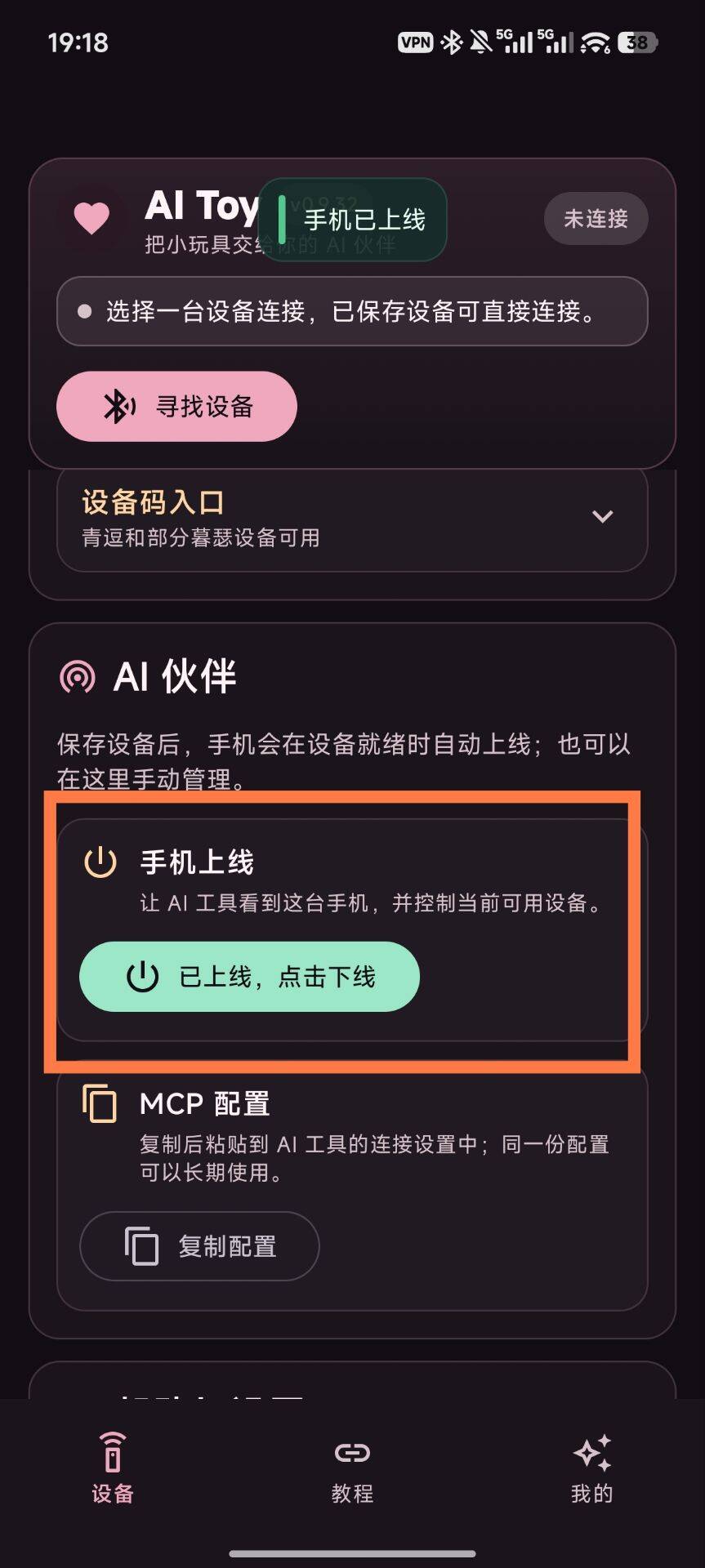
If none of the above works, you can @ the developer in the group and post the specific behavior and the time you tried; it may also be a bug in the software
I am sure I am already online, but why does the AI still say the phone is not online?
In this case, it may also be a problem with your user token configuration. We use the user token to identify a user, so if the user token in your MCP configuration is inconsistent with the one you actually copied in the app, the system will consider your device offline.
Please make sure your user token is configured correctly. You can refer to the MCP Configuration Guide:
-
The request header is: X-User-Token
-
The value is: ut_xxxxx (this is copied from your application)
Do AIToy and AI chat software have to be on the same phone?
No. The AI calls the server via MCP to control the toy, so the AI can run on any platform—another phone, a computer, or the cloud—as long as MCP is available and the full MCP service address copied from the App is reachable.
What should Apple users do
AI Toy Bridge already provides an iOS version, which can be installed from the iOS download entry in Installation and Device Connection. You can also connect the device using Android or desktop, then use it via MCP from an AI client on your iPhone.
The AI cannot call correctly
In theory, as long as it can be controlled in the software, the AI should be able to use it. The AI calls via MCP, which is tool calling underneath. Therefore, ensure:
-
Your model supports tool calling. Some relay station models may be reverse-engineered and do not support tool calling. Make sure your model supports tool calling.
-
You have configured MCP correctly, and the AI uses MCP correctly. In some cases, the AI may hallucinate and think it called a tool when it did not. You can observe the AI's execution process to determine whether it actually called the tool (e.g., operit may have similar issues). You can start a new conversation and, in a fresh window, have it use AIToy MCP and correctly use the relevant tools.
The AI control mode is incorrect
Another common situation is that the AI's control of the toy does not truly utilize the toy's functions. For example, your toy clearly has three functions, but the AI can only ever call one of them.
In this case, the AI may have called the wrong method; you can ask it to try other methods. The app provides different method calls for different devices, and it may succeed with another method.
There is another situation: your device, for example, has 20 levels, and the AI says it is set to 20, but in your perception the intensity is very, very weak. This may be because my software remaps the intensity from 0–20 to 0–100. So for your toy's level 20, the AI needs to use the number 100 for it to take effect correctly. In this case, you can ask the AI to try again.
If it still does not work, you can ask the developer for help in the group. In this case, there may also be a software adaptation issue.