 AI Toy Bridge
What this step accomplishes
First, confirm that your device is in the supported list. For this step, you only need to: connect the device in the App, and after tapping a control, the device actually responds. Once that is done, configure the MCP in your chat software. Even if the device is not in the list, you can still try; some devices may share the same protocol. If it is still unsupported after trying, you can contact the developer to request adaptation.
Download
Download from the official website
Android
For Android, after downloading the app, find the apk in the phone's "File Manager" app and tap to install. Because the software is not listed on an app store, prompts such as "not filed" may appear; simply ignore them and continue the installation. Please install through the download entry provided on the official website.
After downloading the app, we recommend that you set the following 3 points according to the instructions:
- Set the app's battery saver mode to unrestricted
- Lock the app in the background
- Enable notification permission for the app
If you are using a Huawei phone, please disable automatic management in the power consumption details.
This better ensures the stability of your background connection and prevents disconnection when switching to the background
iOS
iOS has two channels:
- TestFlight: https://testflight.apple.com/join/TwHjyqR4.
This channel updates the fastest; usually, I can upload an update right after finishing the code, and then it can be downloaded. The TestFlight channel does not support in-app purchases; you need to purchase membership via the web page, or switch to the official version.
If your device happens to be in the adaptation period, you can try this channel to be the first to experience the features I update. Otherwise, it is recommended to prioritize the official version below.
- Official release: https://apps.apple.com/app/id6812974137
The official version supports in-app purchases and subscriptions. This way you don't need to worry; the membership will automatically renew every month.
Official version updates are subject to Apple App Store review, so they are usually slower. From finishing the code to releasing the update, it takes about 2 to 3 days.
You can switch to a newer channel to replace the other at any time.
After downloading on iOS, it should be ready to use directly. Try to set my app to background lock, and when I request permission to run in the background, keep it allowed, to reduce the probability of being killed in the background.
Connect and test in the App
- Allow Bluetooth control permission, turn on the toy, and put it into Bluetooth pairing mode, staying as close to the phone as possible.
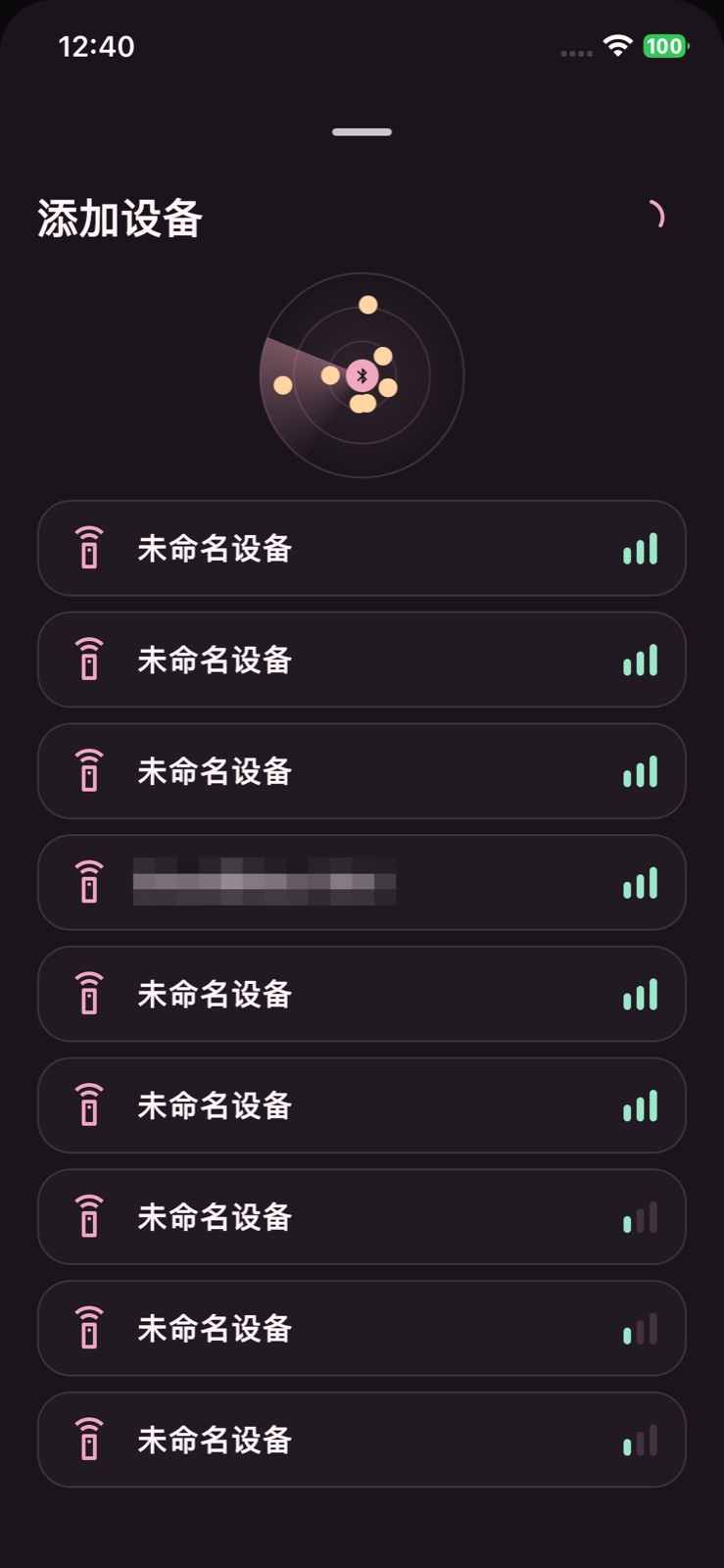
- On the Devices page, tap + in the upper right corner or Add device on the page. The app will start scanning and list nearby Bluetooth devices in the panel. You need to find the nearest device, which is usually at the top and has the fullest signal bars on the right. If you are not sure, you can turn the toy's Bluetooth off and on repeatedly and watch for the newly appearing device in the list. Some devices use broadcast control or device codes, which can be found under Other ways to connect below the panel. If it shows that it cannot connect, it is very likely that your device does not support the Bluetooth protocol; you can contact the developer to report this.
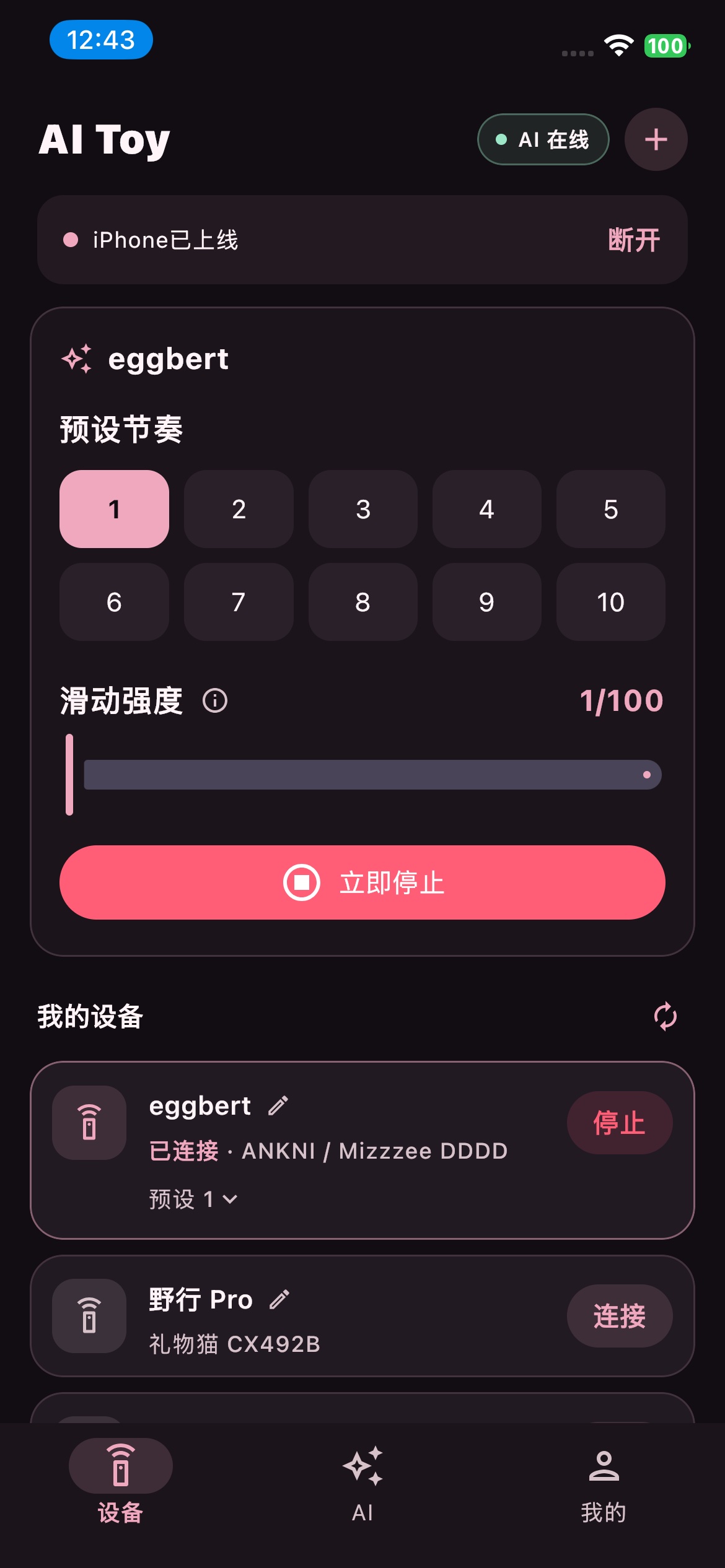
- After a successful connection, a control panel will appear at the top of the Devices page. Try switching preset patterns or dragging the intensity. If the device responds to control within the app and all functions work normally, congratulations—it is supported and can be controlled successfully. At this point, tap Controls work, give it a nice name you can recognize, and save it. If it does not work, tap No response, and the app will automatically try other protocols. If none of the protocols work, please report this to the developer.
Confirm completion and continue to the next step
- The device is connected; when you tap the control buttons in the App, the device does respond.
- The device has been saved, and the App remains running. After switching to a chat app, do not close AI Toy Bridge.
- The App shows AI online. After saving the device, it comes online automatically; if it shows offline, go to the AI page and tap Bring AI online.
Next, proceed to the setup wizard. If local control does not respond, first see Connection and control troubleshooting; there is no need to adjust the AI configuration for now.